 TabsPack
You have too many to close
Ninety tabs, and every one of them is the only record that you were going to read it. Closing the window costs something real, so the window never closes, and the machine pays for it all day.
TabsPack packs every open tab into one small file, and puts them back exactly as they were: the same windows, the same order, the same pinned tabs, the same groups. In the same browser, or a different one.
Free on the Chrome Web Store, which Edge and other Chromium browsers can install from too. Edge Add-ons and Firefox Add-ons follow; until then the Firefox build is on the releases page.
Everything you are in the middle of lives in a row of tabs that any one of these can take away.
Ninety tabs, and every one of them is the only record that you were going to read it. Closing the window costs something real, so the window never closes, and the machine pays for it all day.
A new laptop, a work profile, Chrome to Firefox. Bookmarks come across and the session does not: the windows, the order and the pinned tabs, which is the part you actually had in your head.
A crash, an update, an extension you installed that was later delisted and left every tab parked behind its own page. Restore-last-session is one click deep and one chance wide.
Most exporters give you a list of links. A list of links is not a session. TabsPack keeps the shape.
Three windows come back as three windows, in the order you had them, with the pinned tabs pinned and the active tab active. Position and size too.
Titles, colours and whether a group was collapsed. TabsPack asks for the tab groups permission before you export, because that is where a group's name is lost if it does not.
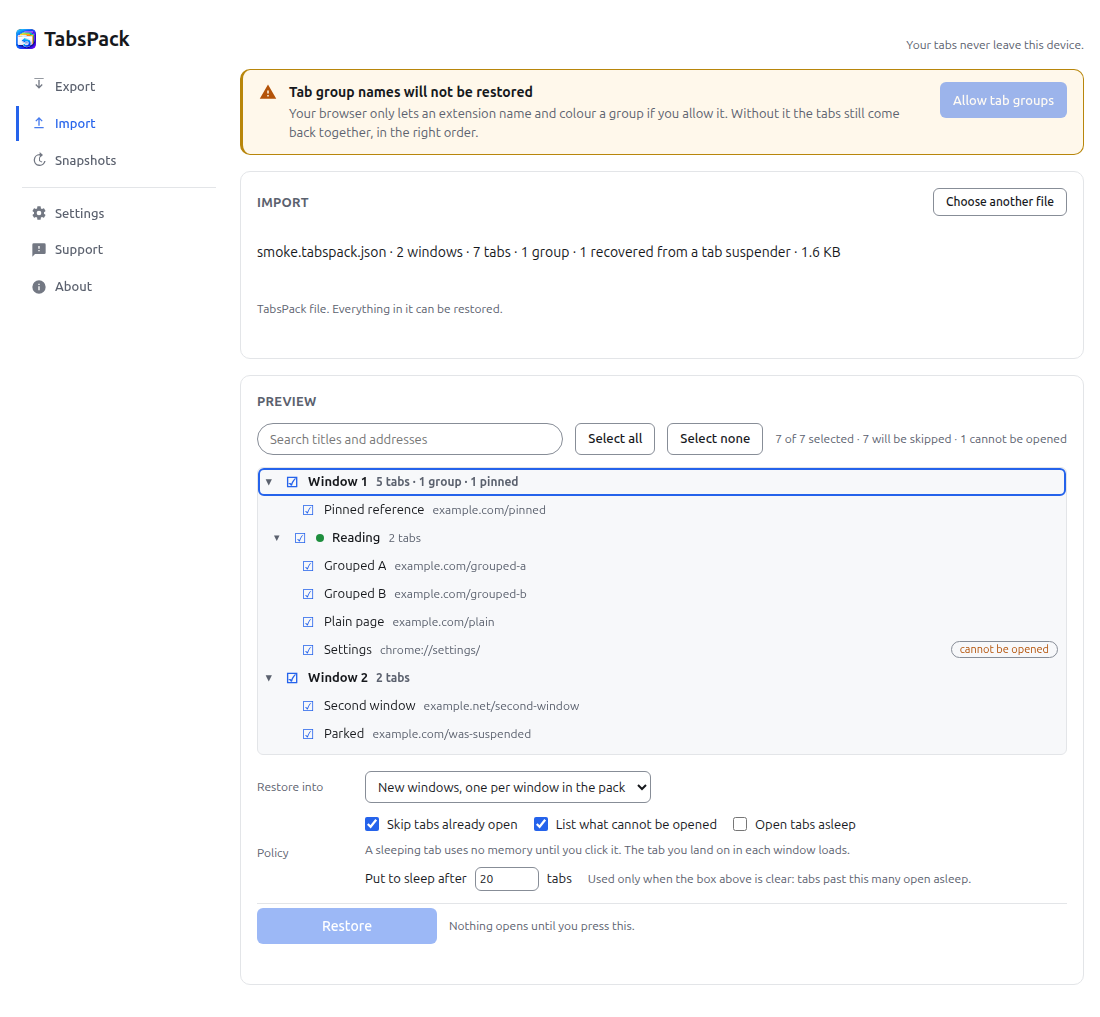
Restored tabs open unloaded: title and address in the strip, nothing running behind them. A pack of 200 real pages restores in about nine seconds and leaves 199 of them asleep.
Suspenders park your tab on their own page and hide the real address inside it, which no other browser can reopen. TabsPack reads it back out, on export and on import, and counts them for you.
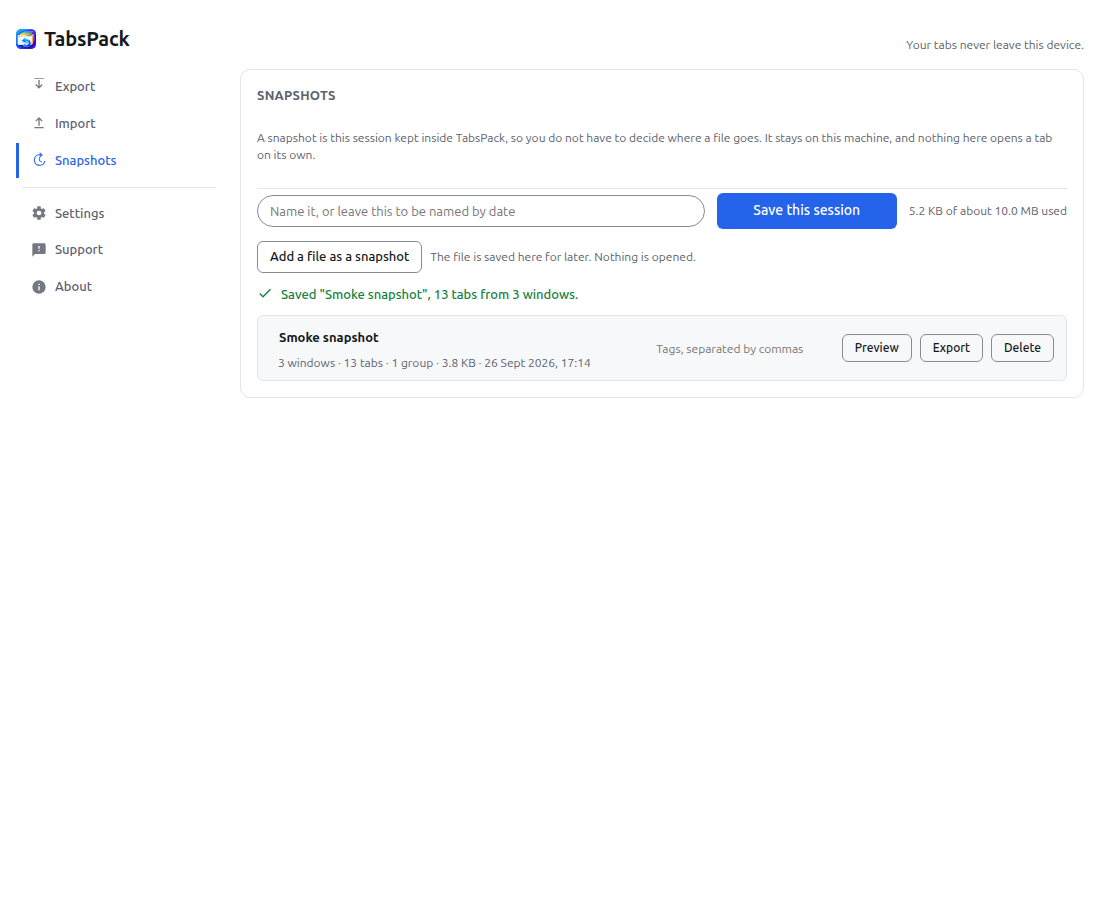
Name the session and keep it inside the extension for the days you do not want to think about where a file goes. Snapshots survive a restart, and they are still only on this machine.
TabsPack groups your open tabs by when you last looked at them, and can leave anything untouched for a month or a year out of the export, so you can archive it and close it. A pinned tab is never called old, and a tab your browser gives no date for is counted apart and never dropped.
Alt + Shift + E exports everything, Alt + Shift + D this window, Alt + Shift + S saves a snapshot. The toolbar icon tells you it worked.
From version 1.1.0: a recovery copy of your open tabs and your last five sessions, kept on this machine. If the browser crashes or starts without them, TabsPack says how many are missing and shows them to you first. Automatic snapshots skip the times nothing changed and keep the newest ten.
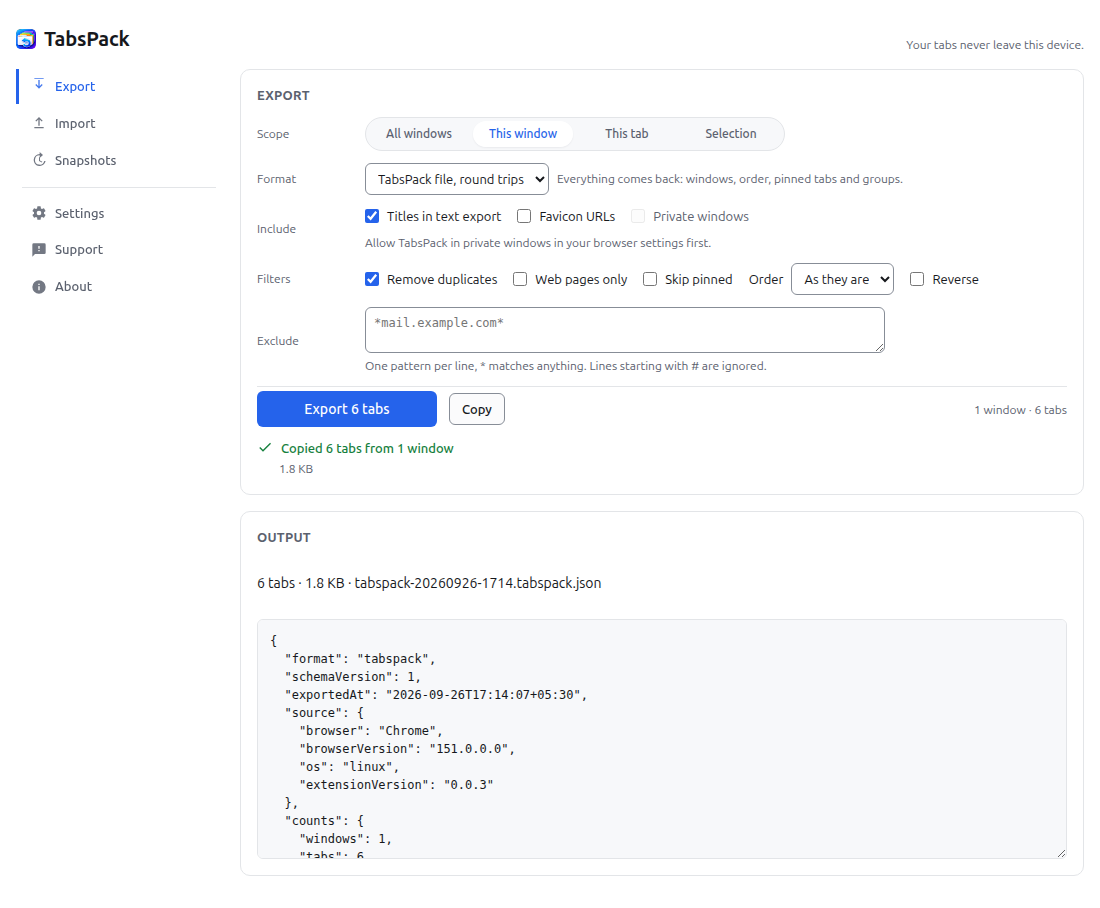
From version 1.1.0 the export pane shows the tabs the file will hold, as the same tree the import preview uses. Untick a tab and it is left out, and the report says how many you left out.
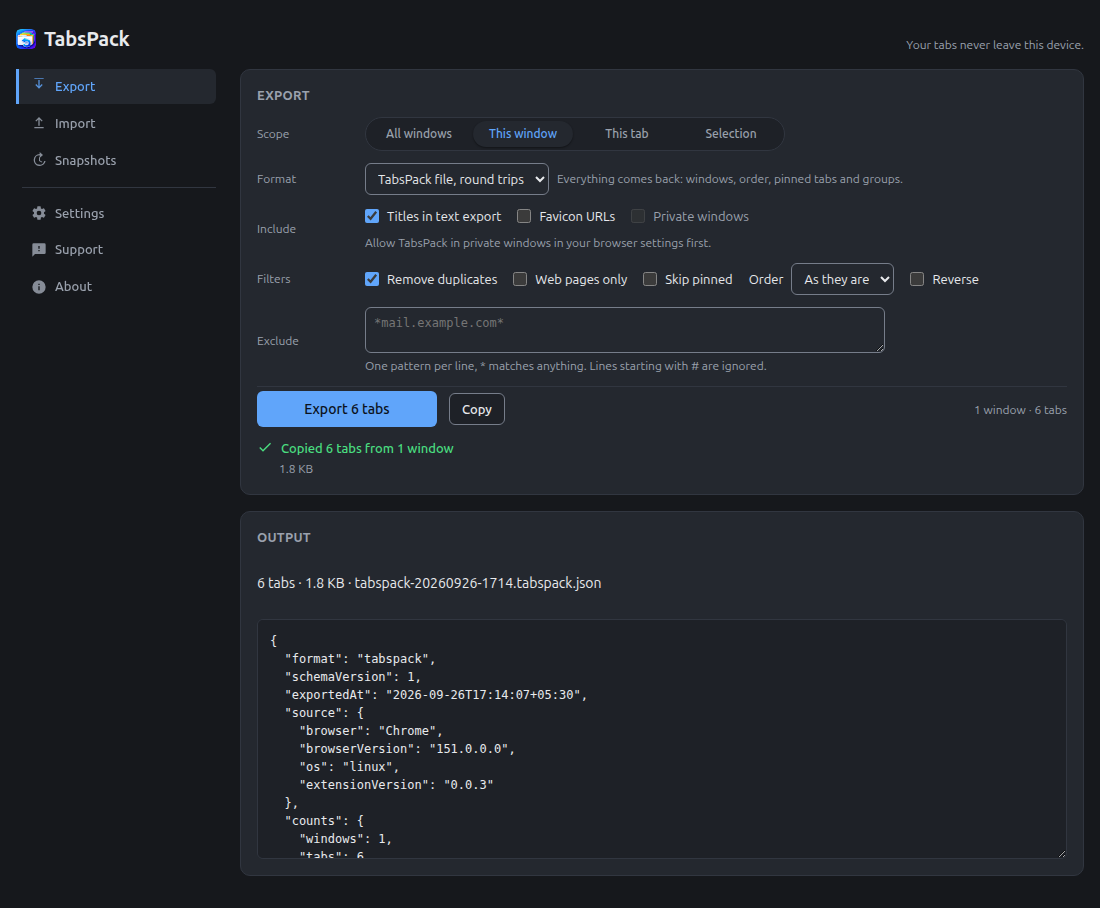
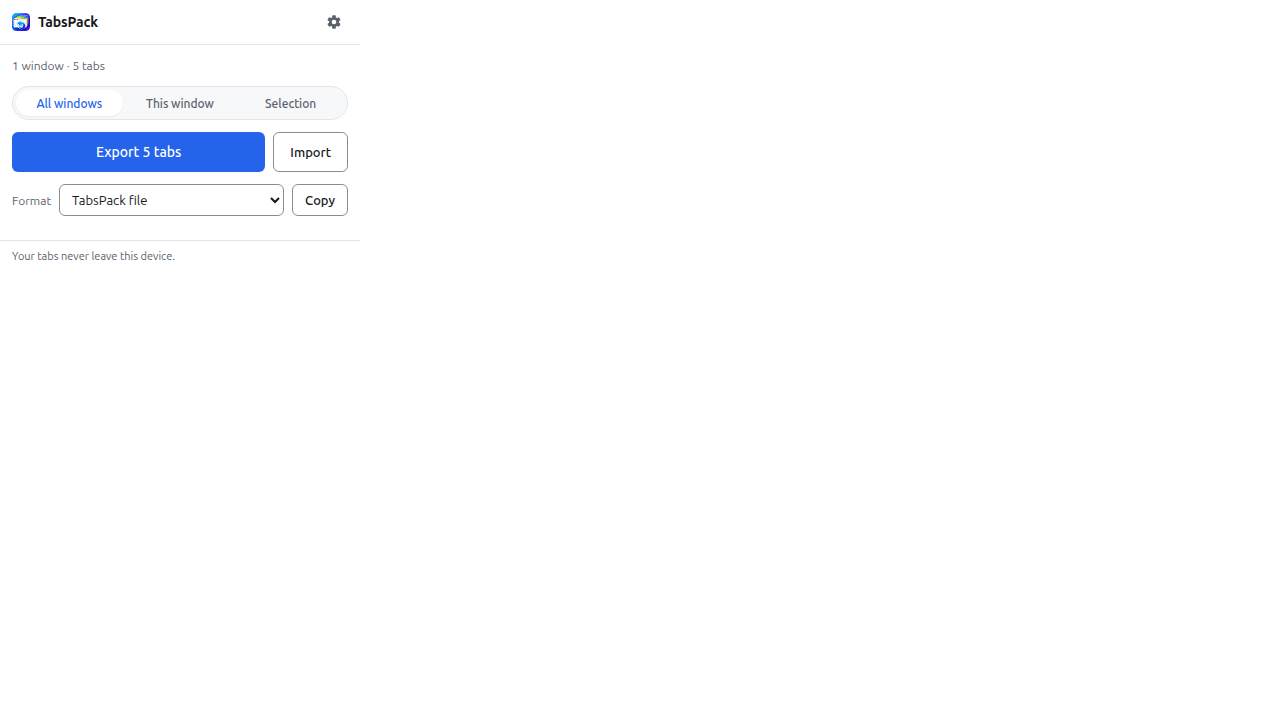
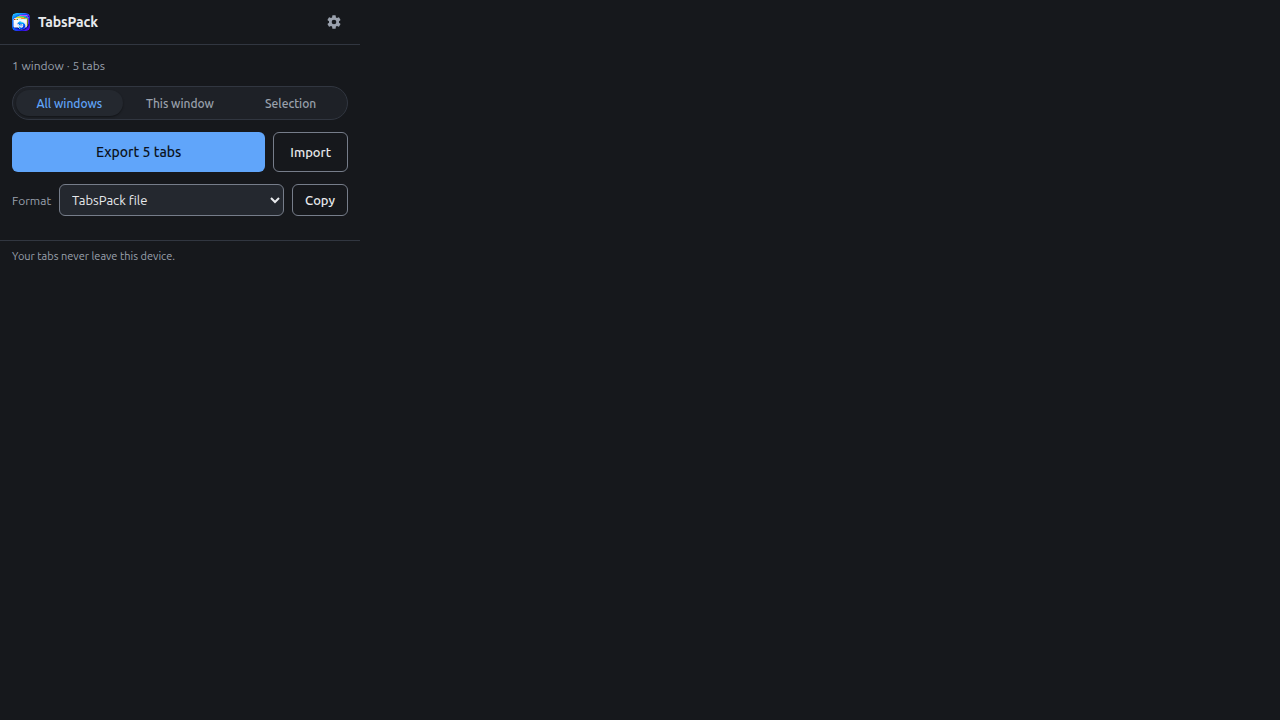
Open TabsPack, choose this window or all of them, and press Export. You get one
.tabspack.json file, named with the date, in your downloads folder.
Email it, drop it in a repository, put it on a stick. It is a small text file and it has no secrets in it: no cookies, no tokens, nothing that could sign in as you.
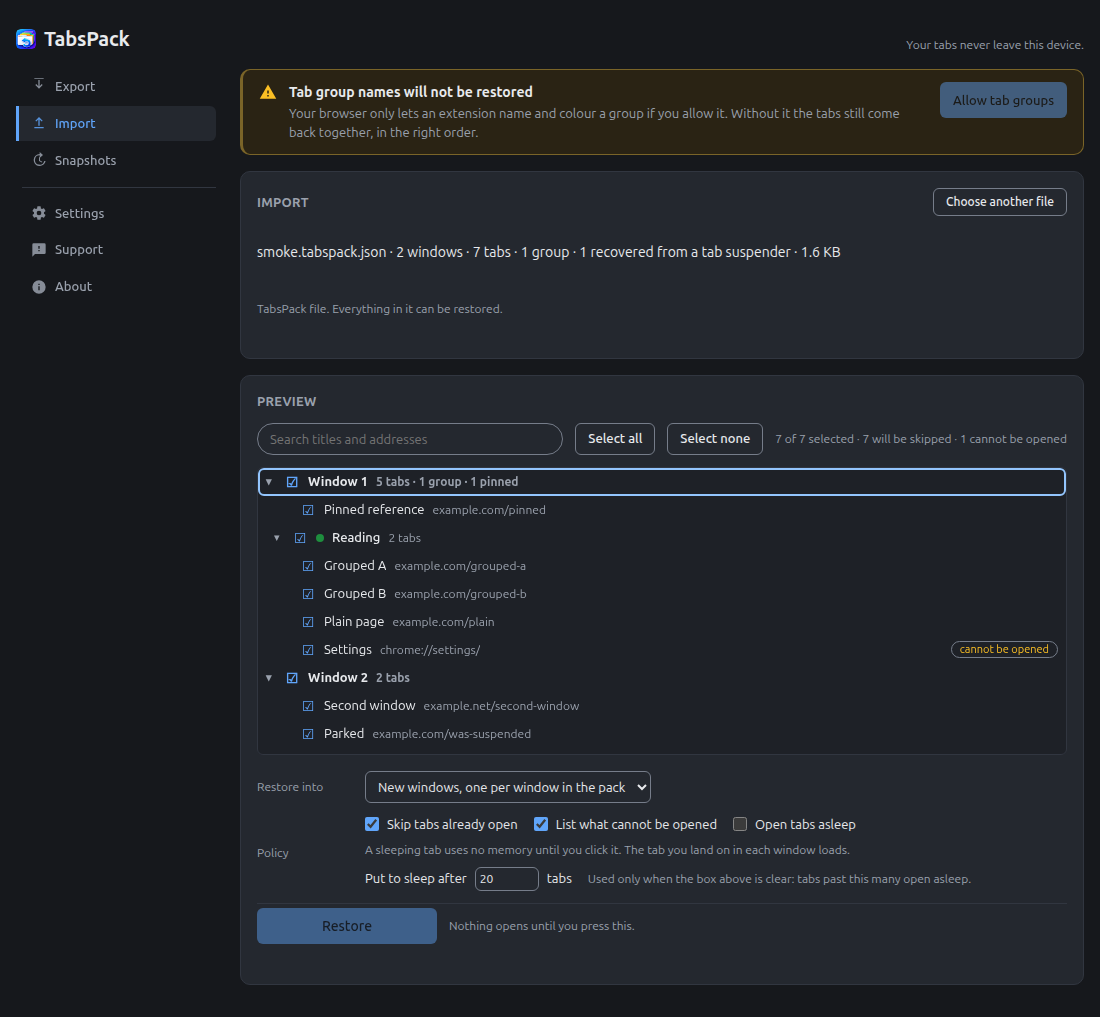
In any browser with TabsPack, drop the file in. You see exactly what is about to open before anything opens, then press Restore and your session is back.
Not as a policy. As a property of the build: TabsPack asks for no host permission when you install it, so out of the box it cannot reach any address on the internet at all.
How the claim is kept honest.
The build refuses to compile if anyone adds a network call. scripts/lint.mjs fails
on fetch, XMLHttpRequest, EventSource,
WebSocket or importScripts anywhere in the source, with one named
exception: the eighty lines that send a support message and nothing else.
It also fails on any remote script, font, stylesheet or image. Everything TabsPack loads comes out of the package you installed.
You do not have to have been using TabsPack for TabsPack to be useful. Drop in the file your old extension gave you.
| Where it came from | Addresses | Titles | Windows | Groups |
|---|---|---|---|---|
TabsPack .tabspack.json | Yes | Yes | Yes | Yes |
| OneTab export | Yes | Yes | Yes | None in the file |
| Session Buddy, JSON and CSV | Yes | Yes | Yes | None in the file |
| Tab Session Manager | Yes | Yes | Yes | None in the file |
| Browser bookmarks, Netscape HTML | Yes | Yes | Folders become windows | None in the file |
| A plain list of URLs | Yes | No | No | No |
| Markdown links, or flat JSON | Yes | Yes | No | No |
TabsPack works out which of these a file is by reading it, not by its extension, and it tells you what it found before it opens a single tab. Anything it cannot use is named in the report rather than dropped in silence.
A .tabspack.json file is ordinary JSON against a published schema. Open it in a
text editor. Diff two of them. Keep one in a repository next to the project it belongs to.
Write a script that generates one.
The point is that your session is not locked inside an extension that might be delisted next year. That has happened to a lot of people, and it is most of the reason this exists.
TabsPack also exports a plain list of addresses, a flat JSON file and a CSV when that is what the next tool needs, and it tells you in the interface exactly what each of those loses.
No. It asks for no host permission when you install it, so it cannot reach any address on the internet. Your tabs are read only when you ask for an export, and they are written to a file on your own machine. The one request TabsPack can ever make is a support message you write yourself and press Send on, and your browser asks your permission before that happens.
Yes, and back again. Windows, tab order and pinned tabs come back everywhere. Tab groups come back in the browsers that have them; where they do not exist the tabs are restored without the grouping, and TabsPack says so rather than quietly dropping something.
No. Restored tabs open asleep: they are in the strip with their title and address, and they load nothing until you click one. A measured restore of 200 real pages takes about nine seconds and leaves 199 of them unloaded. You can turn that off if you would rather they all load.
TabsPack unwraps them. Suspenders park a tab on their own page and hide the true address inside it, which is useless anywhere else and worse than useless if the suspender is ever delisted. TabsPack reads the real address back out, on export and on import, and tells you how many it found.
It is free, there is no paid tier, there is no account, and there is nothing to sell because nothing is collected. It is published under the MIT licence and the source is on GitHub. See pricing for the longer answer, including why it is free.
Yes. It is JSON with a published schema. A text editor opens it, a script can read it, and
git diff tells you what changed between two of them.
Private windows are left out of exports by default, and TabsPack cannot see them at all unless you explicitly allow it in private mode in your browser's own settings and switch the option on inside TabsPack. Two deliberate steps, because the default should be the careful one.
Browsers refuse to let an extension open their own internal pages. TabsPack keeps those addresses in the file so nothing is lost, and on restore it opens a page listing the ones it was not allowed to open, so you can click them yourself.
Free, open source, and it works in the browser you already have. On the Chrome Web Store now, with Edge Add-ons and Firefox Add-ons to follow.