 OpenFullPage
How to use OpenFullPage. All twenty tools, one page.
One click captures a whole page, however long it is. What happens after that is a real editor: shapes that stay editable, redaction that actually removes the pixels, a crop you confirm rather than commit to, and four export formats that tell you what they weigh.
Your first capture
Pin it to the toolbar
Click the puzzle piece in Chrome's toolbar and pin OpenFullPage, so the button is always one click away. There is no popup and no second button to press.
Open a long page and click the button
Or press Alt Shift P. The capture starts immediately. The page scrolls itself while the toolbar icon fills up, and a small panel under the button shows progress and offers Finish now if you would rather stop and keep what it has reached.
Nothing opens in your way while this happens. The result tab appears once the capture is finished, and your page is scrolled back to where you left it.
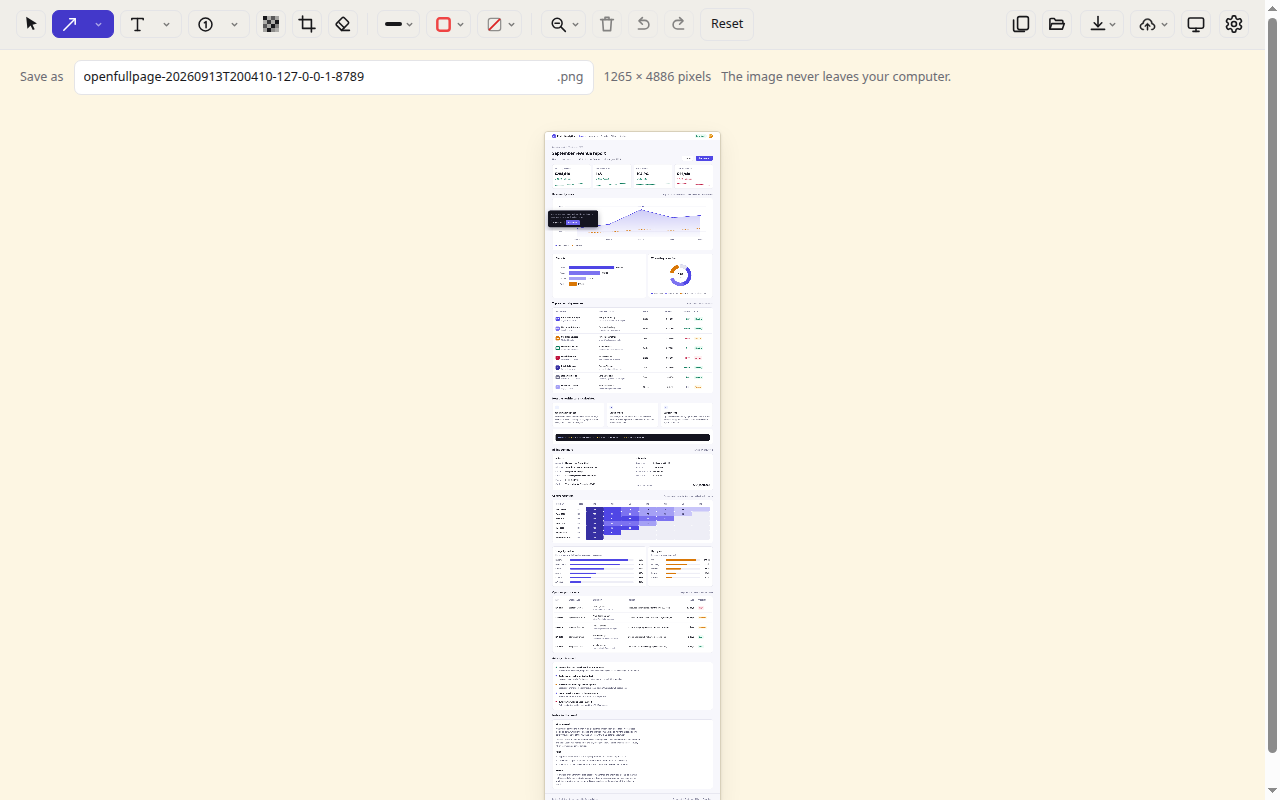
The whole page arrives as one image
Sticky headers appear once at the top instead of marching down the picture. Fixed bars and cookie banners stay in the first screenful. Content that loads lazily is given time to arrive before its screenful is photographed.
The four ways to capture
A plain click does whichever one you set as your default, which starts as the full page. The other three are switched on in settings, because a toolbar that offers four buttons to someone who only ever wants one is a worse toolbar.
| Mode | Shortcut | What it does |
|---|---|---|
| Whole page | Alt Shift P | Measures the page, walks it a screenful at a time, and stitches the result into one image. |
| Visible area | Alt Shift V | Just what is on screen, with no scrolling at all. Fastest, and the right choice when the page is short. |
| Pick an element | Alt Shift E | Point at a card, a table or a chart and capture only that, at its full height even if it scrolls. |
| Remove an element first | From the toolbar menu | Point at a cookie banner, a chat bubble or a newsletter pop up. It is hidden for the capture and put back on the page afterwards. |
All four shortcuts can be remapped at chrome://extensions/shortcuts. Hiding a
button in settings never disables its shortcut.
The editor
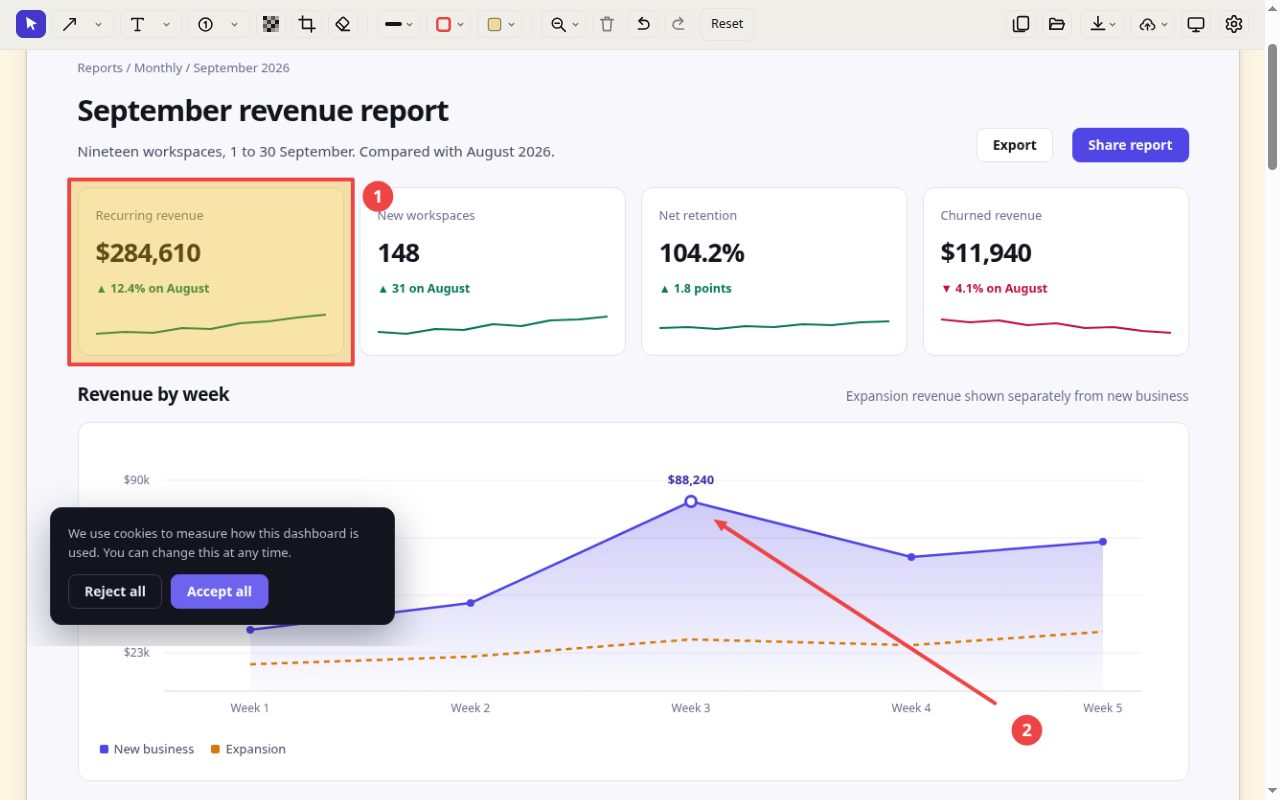
The capture opens in an ordinary tab with a real editor around it. The important thing to know is that every mark stays an object. Draw an arrow now, change your mind ten minutes later, click it and restyle it. Nothing is painted permanently into the picture until you export.
Drawing
Pick a tool, then drag on the image. When you finish a shape it is selected and the tool returns to Select, so the next click moves what you just drew rather than starting another one. Hold Shift while drawing for perfect squares, circles and 45 degree lines.
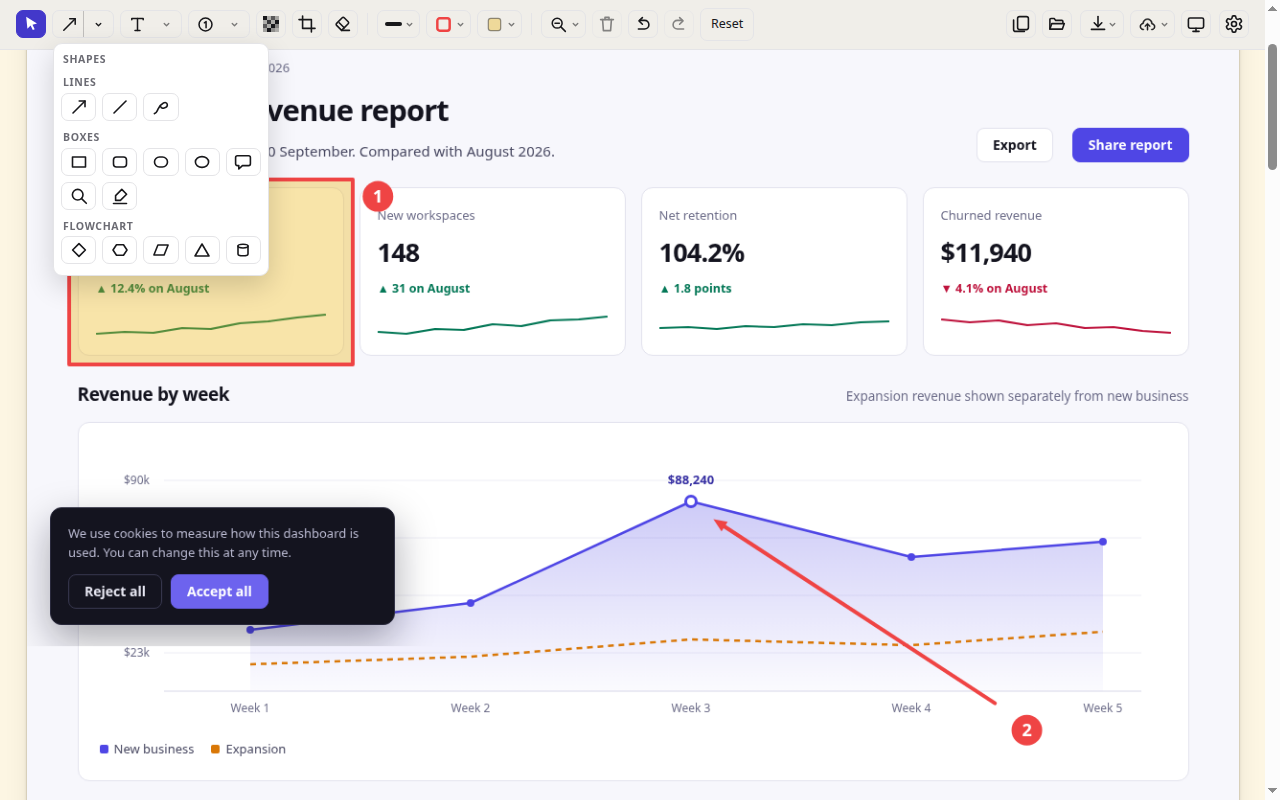
There are fifteen shapes, grouped behind one chevron: arrows, lines and a freehand pen; boxes, rounded boxes, stadiums, ellipses, callouts, a loupe and a highlighter; and five flowchart shapes. Text captions and numbered steps have their own buttons, and each has a chevron beside it. The one by the numbered step sets its size, with a slider or an exact number of pixels, for the steps you have selected and the next one you place. An eraser removes whole marks you drag over.
Selecting and changing things
- Click a shape to select it. The one under your pointer is outlined, and the cursor tells you whether a click would move it or resize it.
- Drag to move, or drag one of the handles to resize. Alt and drag makes a duplicate.
- Arrow keys nudge by a pixel, or ten with Shift. Holding a key counts as one undo step, not fifty.
- Shift click adds to the selection, or sweep a marquee over empty canvas. Ctrl A selects everything.
- Right click a shape for Bring to front, Send to back and the two single steps between. [ and ] do the same from the keyboard.
- Backspace deletes the selection, Esc cancels a drag or drops the selection.
Style
Border and fill are separate controls, each with quick colours, a larger grid, your system colour picker and a hex field, and each carries its own opacity. Stroke offers five weights plus an exact pixel value, solid, dashed or dotted, and arrowheads on either end, both or neither.
Text is multi line, with a family, a size in points, bold, italic, underline and four alignments, all stored on the shape so a caption written earlier can be restyled later. Double click a caption to change its words, and drag a side handle to set the width it wraps at. The Frame block puts a border and a plate behind a caption, which is what makes a label readable over a busy screenshot.
Redacting
Press P and drag over anything you would rather not publish. The tool resamples the pixels underneath and paints the result back over them, and the export is flattened, so the saved file has no original hiding underneath. This is the part most blur tools get wrong: a blur laid over a layered document is usually recoverable.
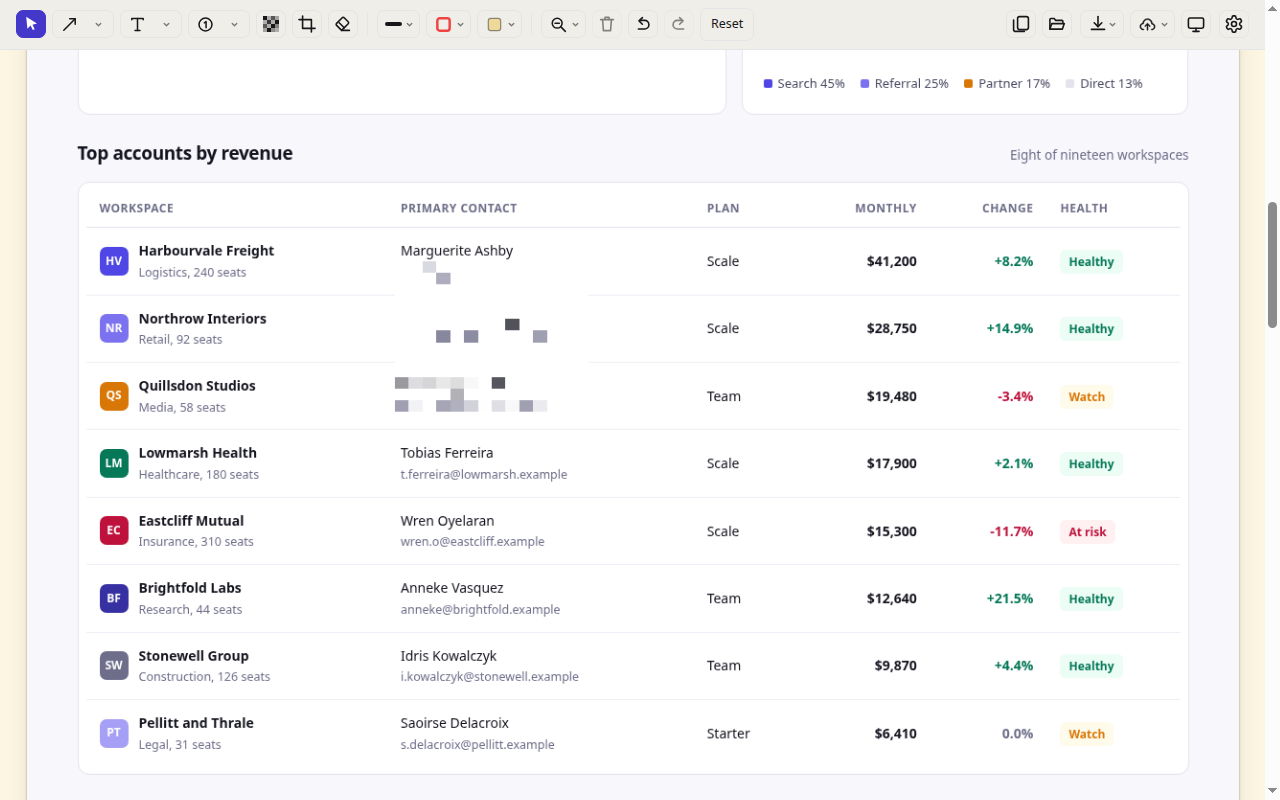
The loupe magnifies a redacted copy of the capture rather than the original, so magnifying part of a redacted region shows the redaction larger and never the pixels beneath it. Check what you redacted before you send it: the tool removes exactly the region you dragged over and nothing else.
Cropping
Press C and drag. Cropping proposes a region rather than cutting immediately: the surround dims, the region has eight handles and can be slid around whole, and a tick and a cross confirm or abandon it. Enter and Esc do the same. The confirm bar is fixed to the window, so it stays reachable on a capture ten screens tall.
A crop is undoable like anything else, because the original capture is kept untouched underneath and every edit is re-rendered from it.
Saving and sharing
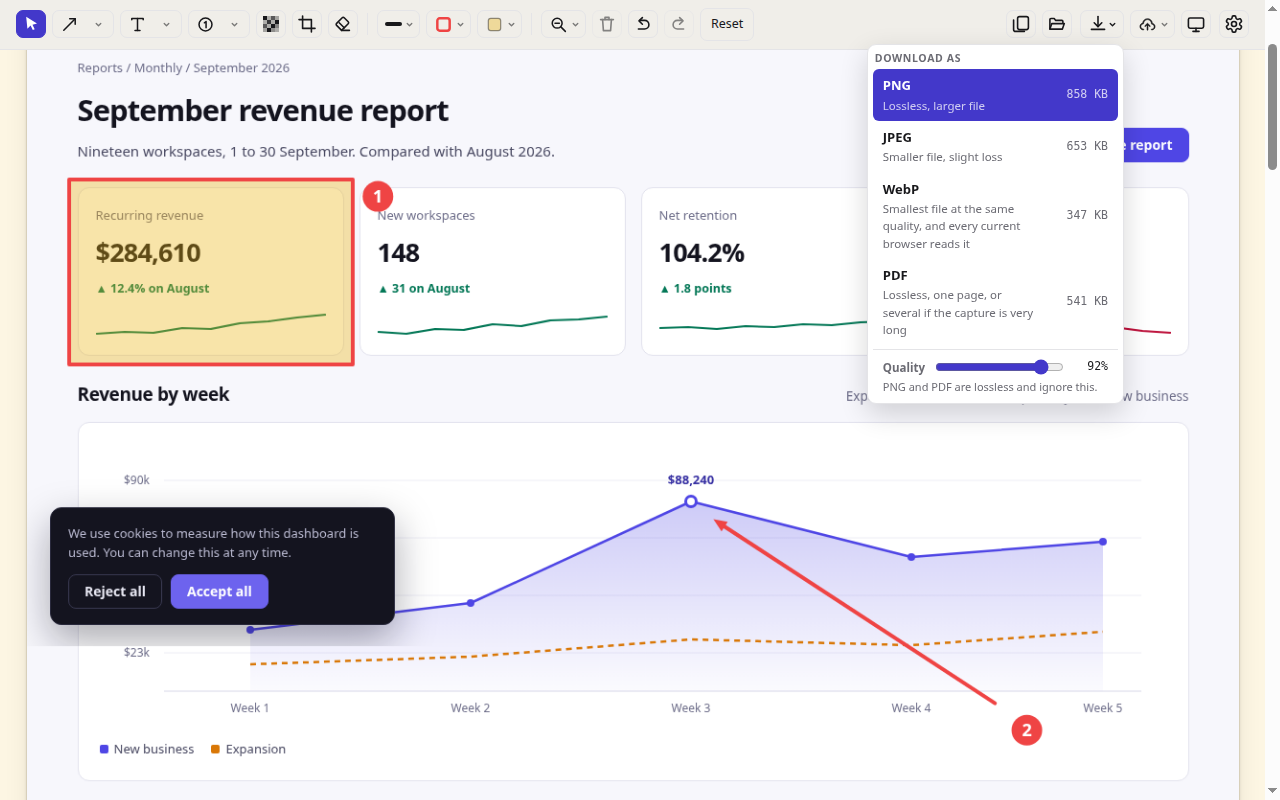
- PNG is lossless and the default. The largest file, and the right one for text.
- JPEG is smaller with a little loss. The Quality slider moves it, and you watch the size change as you drag.
- WebP is usually the smallest at the same quality, and every current browser reads it.
- PDF is lossless. A long capture becomes several pages at the capture's own width, with no scaling and no margins.
The filename is built from the page address and the date, and you can edit it before saving. Ctrl C copies the image to the clipboard instead. Chrome asks for permission to write to your downloads folder the first time you save, not at install, and declining leaves everything else working.
The Upload button is a hand off rather than an upload: it copies the image and opens an image host in a new tab so you can paste it there yourself. The extension performs no upload and has no way to.
Editing an image you already have
The editor is not only for new captures. Open the result tab with no capture in it, or use the open button, and you can bring in an image from a file picker, a drag and drop, or a paste from your clipboard, then annotate, redact, crop and export it exactly as if the extension had photographed it.
Settings and the toolbar
Right click the toolbar icon and choose Options, or use the gear in the editor. Everything is stored locally, and you can export your settings to a file and import them back, which is the deliberate replacement for the synced storage this extension does not use.
| Setting | Default | Notes |
|---|---|---|
| Default capture mode | Whole page | What a plain click does. |
| Extra capture modes | Off | Adds visible area, pick an element and remove an element, with their shortcuts. |
| Capture delay | 0 seconds | Waits before starting, for menus and hover states you want in the picture. |
| Progress panel | On | The animated panel under the toolbar button. |
| Save straight to downloads | Off | Skips the editor entirely and writes the file. Needs the downloads permission, asked for when you switch it on. |
| Export size control | Off | Adds a second slider for the output size beside the quality one. |
| Theme | System | System, light or dark. System follows your operating system. |
| Toolbar controls | Curated | Every button, and each of the fifteen shapes, can be switched off individually. |
| Advanced access | Off | Cross origin frame capture. Asks for broad permissions, and is revocable at any time. |
Every keyboard shortcut
| Key | Does |
|---|---|
| V | Select |
| T | Text caption |
| N | Numbered step |
| P | Redact |
| C | Crop |
| E | Eraser |
| A L F | Arrow, line, freehand pen |
| R U S O | Box, rounded box, stadium, ellipse |
| B Z H | Callout, loupe, highlighter |
| D G M I Y | Rhombus, hexagon, parallelogram, triangle, cylinder |
| Shift while drawing | Squares, circles and 45 degree lines |
| Alt and drag | Duplicate the shape |
| Arrow keys | Nudge one pixel, or ten with Shift |
| [ ] | Send backward, bring forward. Add Ctrl to go all the way |
| Ctrl A | Select everything |
| Backspace | Delete the selection |
| Esc | Cancel a drag, or drop the selection |
| Ctrl Z | Undo. Add Shift to redo |
| Ctrl C | Copy the image to the clipboard |
| Enter | Confirm a crop, or save from the download menu |
On a Mac, use Cmd wherever this table says Ctrl.
When a page fights back
Nothing happens on a Chrome page
Chrome forbids every extension from touching chrome:// pages, the Web Store, the
PDF viewer, other extensions' pages and the new tab page. Nothing can change that. OpenFullPage
says so plainly instead of failing quietly, and opens its editor so you can at least bring in an
image of your own.
The image came back scaled down, or cut short
Chrome's canvas has a hard ceiling of 16,384 pixels on a side. Longer pages are scaled down to fit rather than cut off, and the editor tells you what scale was used. That limit is in device pixels, so a high resolution display reaches it at half the page length. Past roughly half of normal resolution there is nothing left to give and the capture is truncated, which the editor also says.
The page never finished loading
Every step that reaches into a page has a deadline, so a page that never settles cannot hang the capture. Press Finish now in the progress panel to stop where it has reached and keep what it has. The result says it ended early rather than pretending the image is complete.
An embedded frame is cut off
Frames from the same site are expanded to their full height and captured entirely. A frame from a different site cannot have its height read from the page holding it, so only its visible box is captured. Turning on Advanced access in settings closes that gap, at the cost of broad permissions, and it is off by default for that reason.
The page scrolls inside a panel rather than the window
Applications that scroll inside an inner container rather than the window are not supported yet. Pick an element is usually the way through: point at the panel itself and capture that.
The result tab lost my capture
The screenfuls are streamed to the tab once and then forgotten by the extension, so refreshing that tab discards the capture. The tab warns before it lets that happen. Save or copy first.
Something not covered here, or behaving differently from what this page says? Tell us. A guide that is wrong is worse than no guide.